TECPHILE - ZW109 Keyboard Case for Realme Pad X
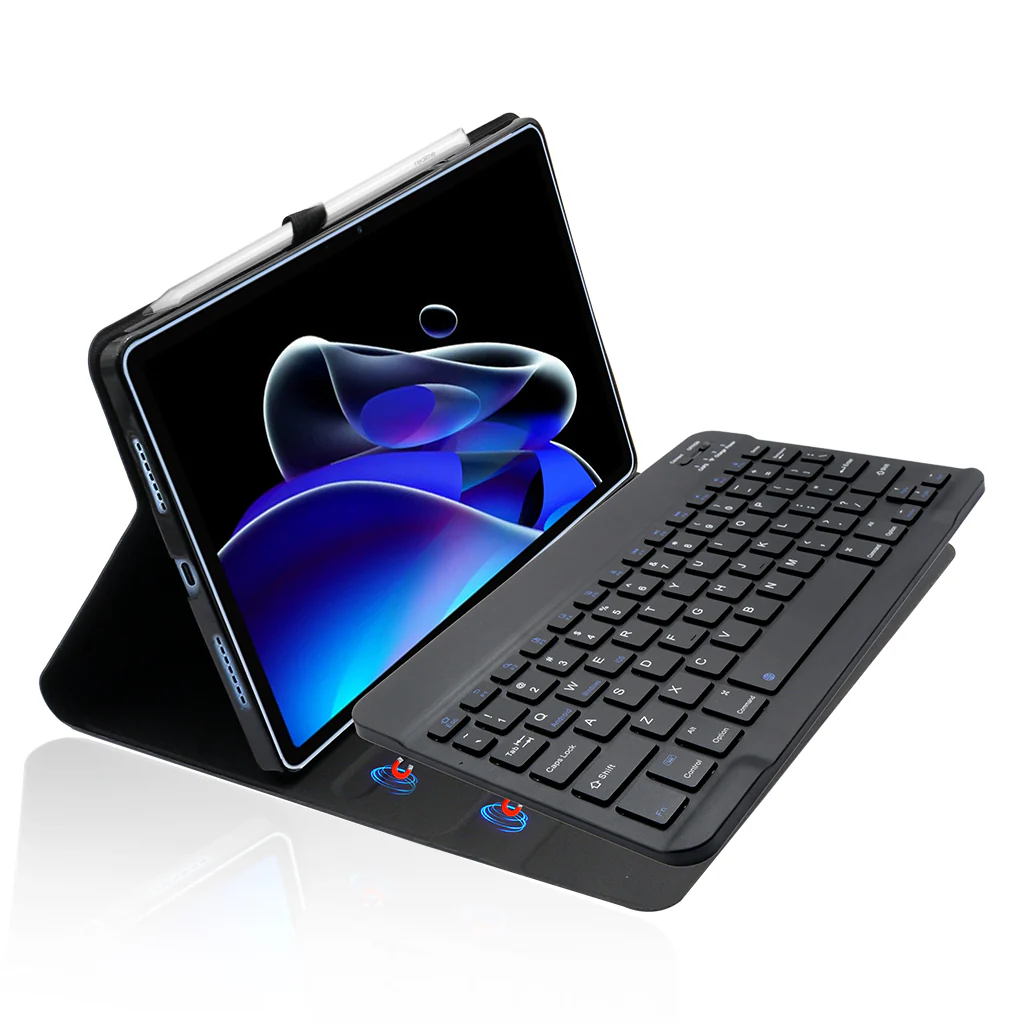
COMPATIBILITY: TECPHILE ZW109 Keyboard case is specifically designed for the Realme Pad X 10.95” (RMP2108) and provides a perfect fit for the device.
MULTIPLE VIEWING ANGLE: ZW109 Keyboard Case for Realme Pad X is magnetically attached and very versatile and the thoughtful design easily adjusts to whatever comfortable angle suits you best. It's perfect for working, writing, taking notes, typing and editing or watching videos.
HOLDER FOR PENCIL: ZW109 Keyboard Case for Realme Pad X comes with a built-in pencil holder is a great accessory for anyone who uses a stylus or pen with their device. It not only helps protect the device from scratches and bumps but also ensures that the stylus or pen is always within reach.
MICRO CHARGING PORT: ZW109 Keyboard Case can easily charge your keyboard with a micro–USB Corded Cable which is included in the package and you can use the keyboard for a long time after one charge.
LIGHTWEIGHT DESIGN: The Keyboard Case for Realme Pad X is lightweight and easy to carry around, making it a great option for people who are always on the go.
EASY TO USE: The keyboard connects to the device via Bluetooth and is easy to set up and use. The keys are responsive and provide a good typing experience.
DISCLAIMER: Kindly use the device with a 5V 1A power adapter only. it will improve the lifespan of your gear and their batteries.
How to connect with Devices
Step 1: Before first use, we recommend charging the keyboard for a minimum of 4 to 6 hours.
Step 2: Please press ‘Fn + C’ Keys to start pairing on the Keyboard. The blue light will start blinking on the keyboard to show the keyboard is in pairing mode.
Step 3: On your device, select the ‘Settings’ icon.
Step 4: Navigate to ‘Bluetooth’ settings and turn on Bluetooth.
Step 5: Select ‘Refresh’ from the settings bar. Your keyboard (Bluetooth Keyboard) will show in the ‘Available Devices’ section.
Step 6: Select the keyboard and press Pair or hit enter. You are now connected!
Troubleshooting Steps
1.Make sure the power is turned on
2.Ensure keyboard operable distance
3.Make sure the battery has power
4.Ensure the device’s Bluetooth was turned on
5.Ensure the wireless keyboard was connected with the Bluetooth
6.Ensure the wireless keyboard paired successfully
Original: $1,299.00
-65%$1,299.00
$454.65Product Information
Product Information
Shipping & Returns
Shipping & Returns
Description
COMPATIBILITY: TECPHILE ZW109 Keyboard case is specifically designed for the Realme Pad X 10.95” (RMP2108) and provides a perfect fit for the device.
MULTIPLE VIEWING ANGLE: ZW109 Keyboard Case for Realme Pad X is magnetically attached and very versatile and the thoughtful design easily adjusts to whatever comfortable angle suits you best. It's perfect for working, writing, taking notes, typing and editing or watching videos.
HOLDER FOR PENCIL: ZW109 Keyboard Case for Realme Pad X comes with a built-in pencil holder is a great accessory for anyone who uses a stylus or pen with their device. It not only helps protect the device from scratches and bumps but also ensures that the stylus or pen is always within reach.
MICRO CHARGING PORT: ZW109 Keyboard Case can easily charge your keyboard with a micro–USB Corded Cable which is included in the package and you can use the keyboard for a long time after one charge.
LIGHTWEIGHT DESIGN: The Keyboard Case for Realme Pad X is lightweight and easy to carry around, making it a great option for people who are always on the go.
EASY TO USE: The keyboard connects to the device via Bluetooth and is easy to set up and use. The keys are responsive and provide a good typing experience.
DISCLAIMER: Kindly use the device with a 5V 1A power adapter only. it will improve the lifespan of your gear and their batteries.
How to connect with Devices
Step 1: Before first use, we recommend charging the keyboard for a minimum of 4 to 6 hours.
Step 2: Please press ‘Fn + C’ Keys to start pairing on the Keyboard. The blue light will start blinking on the keyboard to show the keyboard is in pairing mode.
Step 3: On your device, select the ‘Settings’ icon.
Step 4: Navigate to ‘Bluetooth’ settings and turn on Bluetooth.
Step 5: Select ‘Refresh’ from the settings bar. Your keyboard (Bluetooth Keyboard) will show in the ‘Available Devices’ section.
Step 6: Select the keyboard and press Pair or hit enter. You are now connected!
Troubleshooting Steps
1.Make sure the power is turned on
2.Ensure keyboard operable distance
3.Make sure the battery has power
4.Ensure the device’s Bluetooth was turned on
5.Ensure the wireless keyboard was connected with the Bluetooth
6.Ensure the wireless keyboard paired successfully