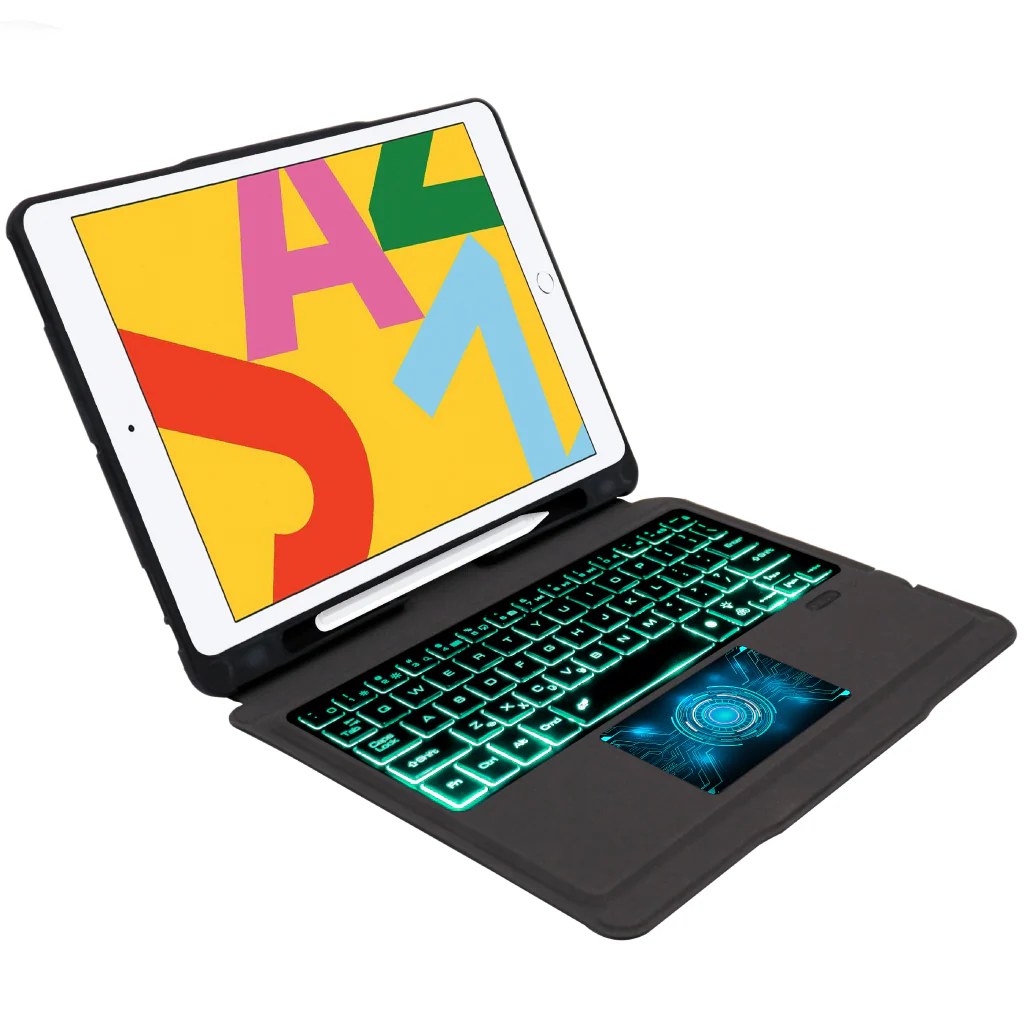
TECPHILE - T206D Wireless Keyboard Case For iPad
DESIGNED FOR iPad – This high-quality iPad protective keyboard cover is specifically designed for iPad 10.2 (2019 7th Gen) (A2197, A2198, A2200, A2232), (2020 8th Gen) (A2428, A2429, A2270) iPad Air (2019 3rd Gen) (A2153, A2123, A2152) iPad Pro 10.5 (2017) (A1709, A1701). The keyboard is easy to use. Pen or iPad NOT included.
MULTI-TOUCH TRACKPAD – You can quickly and easily navigate your iPad with the built-in precision trackpad. Full multi-touch gesture support lets you redefine productivity by allowing you to edit documents, build presentations, and browse web with unparalleled speed.
SUPERIOR QUALITY – Built with the Highest Quality Material, This Case Protects your New iPad against Scratches, Bumps, and Accidental Drops. Keeping your precious device Safe and Sound.
TYPE DAY AND NIGHT – Your keyboard in a new light with 3 brightness modes. The spacious layout and customized backlit keys let you work comfortably at any time of day and night.
LONG-LASTING BATTERY – This keyboard case has in-built 500 mAh capacity rechargeable battery. Auto sleep and wake function protects your iPad battery life as you open or close the iPad cover, your iPad would automatically wake up or sleep.
TYPE C CHARGING PORT – You can easily charge your keyboard with USB-C corded cable which is included in the package and use the keyboard for a long time after one charge.
DISCLAIMER: Kindly charge the keyboard with a 5V/1 Amp power adapter only. It will improve the life span of your gear and its batteries.
HOW TO CONNECT
Step 1: Before first use, we recommend charging the keyboard for a minimum of 4 to 6 hours.
Step 2: Please press ‘Fn+Z’ Keys to start pairing on the keyboard. The blue light will start blinking on the keyboard to show the keyboard is in pairing mode.
Step 3: On your source device, select the ‘Settings’ icon.
Step 4: Navigate to ‘Bluetooth’ settings and turn on Bluetooth.
Step 5: Select ‘Refresh’ from the settings bar. Your keyboard (Bluetooth Keyboard) will show in the ‘Available Devices’ section.
Step 6: Select the keyboard and press Pair or hit enter. You are now connected.
Original: $3,499.00
-65%$3,499.00
$1,224.65Product Information
Product Information
Shipping & Returns
Shipping & Returns
Description
DESIGNED FOR iPad – This high-quality iPad protective keyboard cover is specifically designed for iPad 10.2 (2019 7th Gen) (A2197, A2198, A2200, A2232), (2020 8th Gen) (A2428, A2429, A2270) iPad Air (2019 3rd Gen) (A2153, A2123, A2152) iPad Pro 10.5 (2017) (A1709, A1701). The keyboard is easy to use. Pen or iPad NOT included.
MULTI-TOUCH TRACKPAD – You can quickly and easily navigate your iPad with the built-in precision trackpad. Full multi-touch gesture support lets you redefine productivity by allowing you to edit documents, build presentations, and browse web with unparalleled speed.
SUPERIOR QUALITY – Built with the Highest Quality Material, This Case Protects your New iPad against Scratches, Bumps, and Accidental Drops. Keeping your precious device Safe and Sound.
TYPE DAY AND NIGHT – Your keyboard in a new light with 3 brightness modes. The spacious layout and customized backlit keys let you work comfortably at any time of day and night.
LONG-LASTING BATTERY – This keyboard case has in-built 500 mAh capacity rechargeable battery. Auto sleep and wake function protects your iPad battery life as you open or close the iPad cover, your iPad would automatically wake up or sleep.
TYPE C CHARGING PORT – You can easily charge your keyboard with USB-C corded cable which is included in the package and use the keyboard for a long time after one charge.
DISCLAIMER: Kindly charge the keyboard with a 5V/1 Amp power adapter only. It will improve the life span of your gear and its batteries.
HOW TO CONNECT
Step 1: Before first use, we recommend charging the keyboard for a minimum of 4 to 6 hours.
Step 2: Please press ‘Fn+Z’ Keys to start pairing on the keyboard. The blue light will start blinking on the keyboard to show the keyboard is in pairing mode.
Step 3: On your source device, select the ‘Settings’ icon.
Step 4: Navigate to ‘Bluetooth’ settings and turn on Bluetooth.
Step 5: Select ‘Refresh’ from the settings bar. Your keyboard (Bluetooth Keyboard) will show in the ‘Available Devices’ section.
Step 6: Select the keyboard and press Pair or hit enter. You are now connected.