OP114T Keyboard Case for OnePlus Pad Go 11.35/ Oppo Pad Air2 11.4 2023
SEAMLESS ACCESS, FLAWLESS FIT: Oppo Pad Air2 11.4 Inch 2023 and OnePlus Pad Go 11.35 inch 2023. This Case allows Full Access to all Features & Controls (Cameras, Speakers, Ports & Buttons) without removing the case. Perfect fit, precise cutouts provide easy access to all of the features & functions of your Tablet.
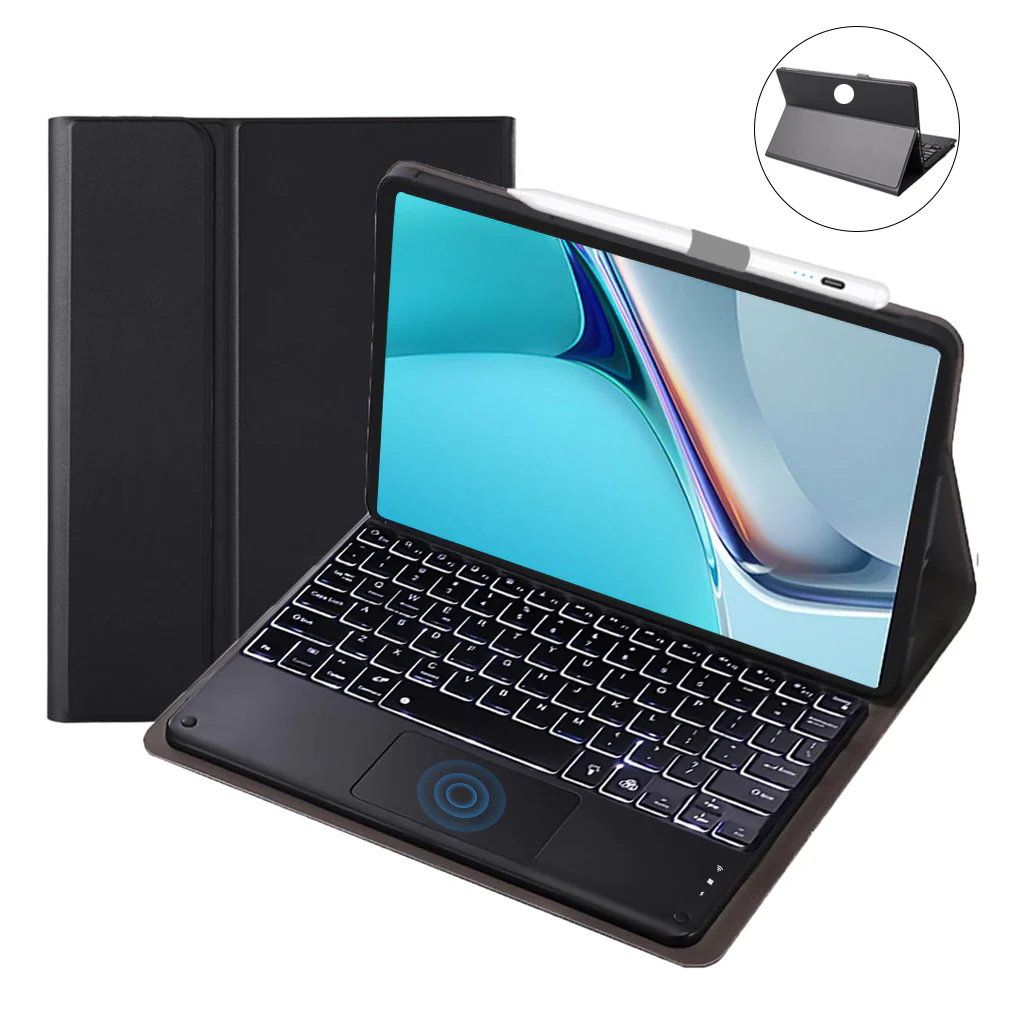
EFFORTLESSLY TRANSFORM YOUR TABLET INTO A LAPTOP: Keyboard Case for OnePlus Pad Go Quickly and easily turn your OnePlus Pad Go/ Oppo Pad Air2 into a laptop by attaching it to the protective cover and connecting the wireless keyboard. This setup ensures efficiency whether you're traveling or working. The case includes a pen holder design for convenient storage and accessibility of your pencil (pencil not included).
MULTIFUNCTIONAL MULTI-VIEWING ANGLE PROTECTIVE CASE: This versatile keyboard case for OnePlus Pad Go case offers multiple viewing angles, making it easy to type, read, or enjoy multimedia content. The adjustable stand enhances your visual experience and usability, ensuring optimal comfort for various activities on your device.
SMART MULTI-GESTURE TRACKPAD: The built-in multi-gesture trackpad allows you to scroll, swipe, and perform various actions seamlessly. It facilitates smooth document editing, web browsing, and presentation creation. The palm rejection feature automatically deactivates the touchpad while typing, enhancing productivity and user experience.
ULTIMATE PROTECTION AND CUSTOMIZATION: Enhance the durability of your Keyboard Case for OnePlus Pad go/ Oppo Pad Air2 with a protective keyboard case/cover. The front PU leather cover and soft TPU frame offer complete protection against shocks, drops, and impacts. The detachable keyboard allows you to transform the case into a tri-fold cover. The wireless connectivity enables you to work from anywhere.
7-COLOR BACKLIT KEYBOARD FOR LOW LIGHT ENVIRONMENTS: The keyboard case features a customizable 7-color backlit keyboard, perfect for low-light settings. Adjust the brightness and select from a range of vibrant colors to enhance your typing experience even in dimly lit environments.
PORTABLE, LIGHTWEIGHT, AND HANDY DESIGN: The case is portable and easy to carry, making it ideal for business, study, or entertainment. It fits comfortably into a briefcase, handbag, or backpack, ensuring convenient mobility. The keyboard connects wirelessly via Bluetooth and features spacious scissor-structure keys for a comfortable typing experience.
How to Connect with Devices
Step 1: Before first use, we recommend charging the keyboard for a minimum of 4 to 6 hours.
Step 2: Please press the ‘Fn + C’ Keys to start pairing on the Keyboard. The blue light will start blinking on the keyboard to show the keyboard is in pairing mode.
Step 3: On your device, select the ‘Settings’ icon.
Step 4: Navigate to ‘Bluetooth’ settings and turn on Bluetooth.
Step 5: Select ‘Refresh’ from the settings bar. Your keyboard (Bluetooth Keyboard) will show in the ‘Available Devices’ section.
Step 6: Select the keyboard and press Pair or hit enter. You are now connected!
Troubleshooting Tips
- Ensure the power is on.
- Check the keyboard's operable distance.
- Verify the battery has power.
- Confirm Bluetooth is enabled on your device.
- Make sure the keyboard is connected and paired successfully.
Disclaimer
Use a 5V/1 Amp power adapter to charge the keyboard. This will enhance the lifespan of your keyboard and its battery.
Product Information
Product Information
Shipping & Returns
Shipping & Returns
Description
SEAMLESS ACCESS, FLAWLESS FIT: Oppo Pad Air2 11.4 Inch 2023 and OnePlus Pad Go 11.35 inch 2023. This Case allows Full Access to all Features & Controls (Cameras, Speakers, Ports & Buttons) without removing the case. Perfect fit, precise cutouts provide easy access to all of the features & functions of your Tablet.
EFFORTLESSLY TRANSFORM YOUR TABLET INTO A LAPTOP: Keyboard Case for OnePlus Pad Go Quickly and easily turn your OnePlus Pad Go/ Oppo Pad Air2 into a laptop by attaching it to the protective cover and connecting the wireless keyboard. This setup ensures efficiency whether you're traveling or working. The case includes a pen holder design for convenient storage and accessibility of your pencil (pencil not included).
MULTIFUNCTIONAL MULTI-VIEWING ANGLE PROTECTIVE CASE: This versatile keyboard case for OnePlus Pad Go case offers multiple viewing angles, making it easy to type, read, or enjoy multimedia content. The adjustable stand enhances your visual experience and usability, ensuring optimal comfort for various activities on your device.
SMART MULTI-GESTURE TRACKPAD: The built-in multi-gesture trackpad allows you to scroll, swipe, and perform various actions seamlessly. It facilitates smooth document editing, web browsing, and presentation creation. The palm rejection feature automatically deactivates the touchpad while typing, enhancing productivity and user experience.
ULTIMATE PROTECTION AND CUSTOMIZATION: Enhance the durability of your Keyboard Case for OnePlus Pad go/ Oppo Pad Air2 with a protective keyboard case/cover. The front PU leather cover and soft TPU frame offer complete protection against shocks, drops, and impacts. The detachable keyboard allows you to transform the case into a tri-fold cover. The wireless connectivity enables you to work from anywhere.
7-COLOR BACKLIT KEYBOARD FOR LOW LIGHT ENVIRONMENTS: The keyboard case features a customizable 7-color backlit keyboard, perfect for low-light settings. Adjust the brightness and select from a range of vibrant colors to enhance your typing experience even in dimly lit environments.
PORTABLE, LIGHTWEIGHT, AND HANDY DESIGN: The case is portable and easy to carry, making it ideal for business, study, or entertainment. It fits comfortably into a briefcase, handbag, or backpack, ensuring convenient mobility. The keyboard connects wirelessly via Bluetooth and features spacious scissor-structure keys for a comfortable typing experience.
How to Connect with Devices
Step 1: Before first use, we recommend charging the keyboard for a minimum of 4 to 6 hours.
Step 2: Please press the ‘Fn + C’ Keys to start pairing on the Keyboard. The blue light will start blinking on the keyboard to show the keyboard is in pairing mode.
Step 3: On your device, select the ‘Settings’ icon.
Step 4: Navigate to ‘Bluetooth’ settings and turn on Bluetooth.
Step 5: Select ‘Refresh’ from the settings bar. Your keyboard (Bluetooth Keyboard) will show in the ‘Available Devices’ section.
Step 6: Select the keyboard and press Pair or hit enter. You are now connected!
Troubleshooting Tips
- Ensure the power is on.
- Check the keyboard's operable distance.
- Verify the battery has power.
- Confirm Bluetooth is enabled on your device.
- Make sure the keyboard is connected and paired successfully.
Disclaimer
Use a 5V/1 Amp power adapter to charge the keyboard. This will enhance the lifespan of your keyboard and its battery.